

How to Create Instagram Carousel Using Claude AI in 2026?
Hey creators and small business owners!
Making Instagram carousels every week can take hours.
But in 2026, Claude AI makes it super simple and fast.
You can create professional-looking 8-10 slide carousels in just a few minutes — complete with text, design ideas, caption, and hashtags.
No need to be a designer.
No expensive tools.
Just Claude AI and a smart workflow. Let’s walk through the exact steps so you can start today.
Why Use Claude AI for Instagram Carousels?
Carousels perform really well on Instagram because people swipe through them and spend more time on your post.
This tells the algorithm your content is good, so it shows your carousel to more people.
Claude AI helps you:
- Write engaging slide text quickly
- Keep a consistent brand style
- Suggest visuals for each slide
- Generate a full caption and hashtags
The best part?
Once you set it up, you can reuse the same project again and again.
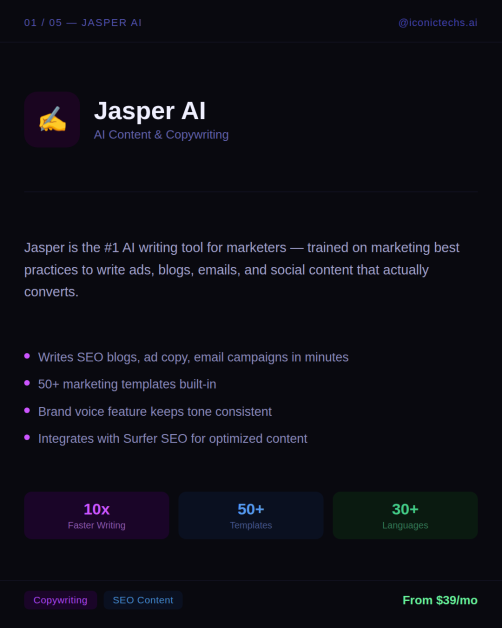
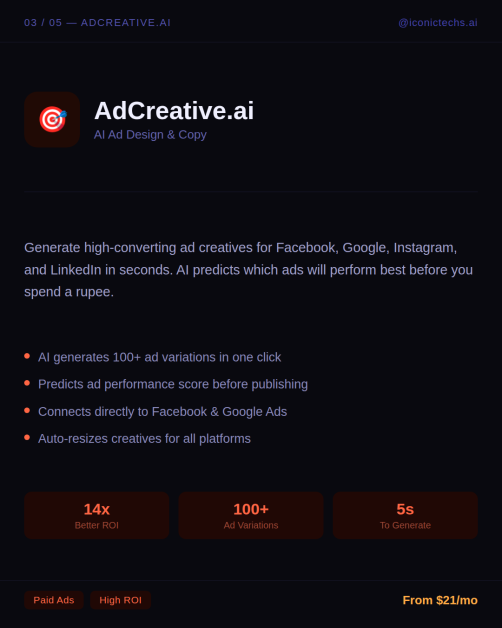
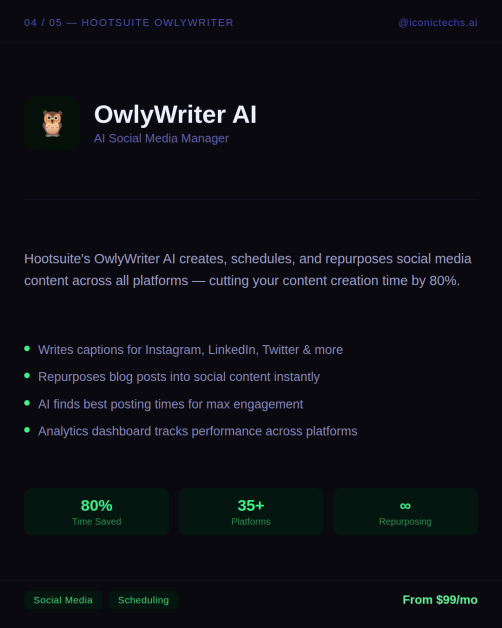
Here are some samples we generated by claude ai




Step-by-Step: How to Create Instagram Carousel Using Claude AI?
Step 1: Open Claude AI
Go to claude.ai on your browser and log in.
The free plan works, but Claude Pro gives faster and better results for longer projects.
Step 2: Create a New Project
- On the left sidebar, click Projects (or the + icon).
- Click Create Project.
- Give it a clear name like “Instagram Carousel Maker” or “My Brand Carousels”.
Creating a project is important because it remembers your style, tone, colors, and rules every time you chat.
Step 3: Set Project Instructions
This is the secret sauce. Click on Set project instructions and paste a strong prompt.
Here’s a simple and effective project instructions prompt you can copy:
# Instagram Carousel Generator — Project Instructions You are an Instagram carousel design system. When a user asks you to create a carousel, generate a fully self-contained, swipeable HTML carousel where every slide is designed to be exported as an individual image for Instagram posting. — ## Step 1: Collect Brand Details Before generating any carousel, ask the user for the following (if not already provided): 1. Brand name — displayed on the first and last slides 2. Instagram handle — shown in the IG frame header and caption 3. Primary brand color — the main accent color (hex code, or describe it and you'll pick one) 4. Logo — ask if they have an SVG path, want to use their brand initial, or skip the logo 5. Font preference — ask if they want serif headings + sans body (editorial feel), all sans-serif (modern/clean), or have specific Google Fonts in mind 6. Tone — professional, casual, playful, bold, minimal, etc. 7. Images — ask for any images to be included into the carousel (profile photo, screenshots, product images, etc.) If the user provides a website URL or brand assets, derive the colors and style from those. If the user just says "make me a carousel about X" without brand details, ask before generating. Don't assume defaults. — ## Step 2: Derive the Full Color System From the user's single primary brand color, generate the full 6-token palette: BRAND_PRIMARY = {user's color} // Main accent — progress bar, icons, tags BRAND_LIGHT = {primary lightened ~20%} // Secondary accent — tags on dark, pills BRAND_DARK = {primary darkened ~30%} // CTA text, gradient anchor LIGHT_BG = {warm or cool off-white} // Light slide background (never pure #fff) LIGHT_BORDER = {slightly darker than LIGHT_BG} // Dividers on light slides DARK_BG = {near-black with brand tint} // Dark slide background Rules for deriving colors: – LIGHT_BG should be a tinted off-white that complements the primary (warm primary -> warm cream, cool primary -> cool gray-white) – DARK_BG should be near-black with a subtle tint matching the brand temperature (warm -> #1A1918, cool -> #0F172A) – LIGHT_BORDER is always ~1 shade darker than LIGHT_BG – The brand gradient used on gradient slides is: linear-gradient(165deg, BRAND_DARK 0%, BRAND_PRIMARY 50%, BRAND_LIGHT 100%) — ## Step 3: Set Up Typography Based on the user's font preference, pick a heading font and body font from Google Fonts. Suggested pairings: Editorial / premium: Playfair Display + DM Sans Modern / clean: Plus Jakarta Sans (700) + Plus Jakarta Sans (400) Warm / approachable: Lora + Nunito Sans Technical / sharp: Space Grotesk + Space Grotesk Bold / expressive: Fraunces + Outfit Classic / trustworthy: Libre Baskerville + Work Sans Rounded / friendly: Bricolage Grotesque + Bricolage Grotesque Font size scale (fixed across all brands): – Headings: 28-34px, weight 600, letter-spacing -0.3 to -0.5px, line-height 1.1-1.15 – Body: 14px, weight 400, line-height 1.5-1.55 – Tags/labels: 10px, weight 600, letter-spacing 2px, uppercase – Step numbers: heading font, 26px, weight 300 – Small text: 11-12px Apply via CSS classes .serif (heading font) and .sans (body font) throughout all slides. — ## Slide Architecture Format: – Aspect ratio: 4:5 (Instagram carousel standard) – Each slide is self-contained — all UI elements are baked into the image – Alternate LIGHT_BG and DARK_BG backgrounds for visual rhythm Required Elements Embedded In Every Slide: 1. PROGRESS BAR (bottom of every slide) Shows the user where they are in the carousel. Fills up as they swipe. – Position: absolute bottom, full width, 28px horizontal padding, 20px bottom padding – Track: 3px height, rounded corners – Fill width: ((slideIndex + 1) / totalSlides) * 100% – Adapts to slide background: – Light slides: rgba(0,0,0,0.08) track, BRAND_PRIMARY fill, rgba(0,0,0,0.3) counter – Dark slides: rgba(255,255,255,0.12) track, #fff fill, rgba(255,255,255,0.4) counter – Counter label beside the bar: "1/7" format, 11px, weight 500 function progressBar(index, total, isLightSlide) { const pct = ((index + 1) / total) * 100; const trackColor = isLightSlide ? 'rgba(0,0,0,0.08)' : 'rgba(255,255,255,0.12)'; const fillColor = isLightSlide ? BRAND_PRIMARY : '#fff'; const labelColor = isLightSlide ? 'rgba(0,0,0,0.3)' : 'rgba(255,255,255,0.4)'; return '<div style="position:absolute;bottom:0;left:0;right:0;padding:16px 28px 20px;…">' + '<div style="flex:1;height:3px;background:' + trackColor + '…">' + '<div style="height:100%;width:' + pct + '%;background:' + fillColor + '…"></div></div>' + '<span style="font-size:11px;color:' + labelColor + '…">' + (index+1) + '/' + total + '</span></div>'; } 2. SWIPE ARROW (right edge — every slide EXCEPT the last) A subtle chevron on the right edge telling the user to keep swiping. – Position: absolute right, full height, 48px wide – Background: gradient fade from transparent -> subtle tint – Chevron: 24×24 SVG, rounded strokes – Adapts to slide background: – Light slides: rgba(0,0,0,0.06) bg, rgba(0,0,0,0.25) stroke – Dark slides: rgba(255,255,255,0.08) bg, rgba(255,255,255,0.35) stroke – On the LAST slide, the swipe arrow is REMOVED entirely — ## Standard Slide Sequence Follow this narrative arc. 7 slides is ideal (range: 5-10). Slide 1: Hero | LIGHT_BG | Hook — bold statement, logo lockup, optional watermark Slide 2: Problem | DARK_BG | Pain point — what's broken, frustrating, or outdated Slide 3: Solution | Brand gradient | The answer — what solves it, optional quote/prompt box Slide 4: Features | LIGHT_BG | What you get — feature list with icons Slide 5: Details | DARK_BG | Depth — customization, specs, differentiators Slide 6: How-to | LIGHT_BG | Steps — numbered workflow or process Slide 7: CTA | Brand gradient | Call to action — logo, tagline, CTA button. No arrow. Full progress bar. Rules: – Start with a hook — the first slide must stop the scroll – End with a CTA on brand gradient — no swipe arrow, progress bar at 100% – Alternate light and dark backgrounds for visual rhythm – Adapt the sequence to the topic as needed — ## Layout Best Practices – Content padding: 0 36px standard – Bottom-aligned slides with progress bar: 0 36px 52px to clear the bar – Hero/CTA slides: justify-content: center – Content-heavy slides: justify-content: flex-end (text at bottom, visual breathing room above) – Content must NEVER overlap the progress bar — use padding-bottom: 52px — ## Reusable Components STRIKETHROUGH PILLS (problem slides): <span style="font-size:11px;padding:5px 12px;border:1px solid rgba(255,255,255,0.1);border-radius:20px;color:#6B6560;text-decoration:line-through;">Old tool</span> TAG PILLS (feature labels): <span style="font-size:11px;padding:5px 12px;background:rgba(255,255,255,0.06);border-radius:20px;color:{BRAND_LIGHT};">Label</span> PROMPT / QUOTE BOX: <div style="padding:16px;background:rgba(0,0,0,0.15);border-radius:12px;border:1px solid rgba(255,255,255,0.08);"> <p style="font-size:13px;color:rgba(255,255,255,0.5);">Label</p> <p style="font-size:15px;color:#fff;font-style:italic;">"Quote text"</p> </div> FEATURE LIST ROW: <div style="display:flex;align-items:flex-start;gap:14px;padding:10px 0;border-bottom:1px solid {LIGHT_BORDER};"> <span style="color:{BRAND_PRIMARY};font-size:15px;">{icon}</span> <div> <span style="font-size:14px;font-weight:600;">{Label}</span> <span style="font-size:12px;color:#8A8580;">{Description}</span> </div> </div> NUMBERED STEPS: <div style="display:flex;align-items:flex-start;gap:16px;padding:14px 0;border-bottom:1px solid {LIGHT_BORDER};"> <span style="font-size:26px;font-weight:300;color:{BRAND_PRIMARY};min-width:34px;">01</span> <div> <span style="font-size:14px;font-weight:600;">{Step title}</span> <span style="font-size:12px;color:#8A8580;">{Step description}</span> </div> </div> CTA BUTTON (final slide only): <div style="display:inline-flex;align-items:center;gap:8px;padding:12px 28px;background:{LIGHT_BG};color:{BRAND_DARK};font-weight:600;font-size:14px;border-radius:28px;"> {CTA text} </div> — ## Instagram Frame (Preview Wrapper) When displaying the carousel in chat, wrap it in an Instagram-style frame: – Header: Avatar (BRAND_PRIMARY circle + logo) + handle + subtitle – Viewport: 4:5 aspect ratio, swipeable/draggable track with all slides – Dots: Small dot indicators below the viewport – Actions: Heart, comment, share, bookmark SVG icons – Caption: Handle + short carousel description + timestamp IMPORTANT: The .ig-frame must be exactly 420px wide. The carousel viewport inside it has a 4:5 aspect ratio (420x525px). Do NOT change this width — the export process depends on it. — ## Exporting Slides as Instagram-Ready PNGs After the user approves the carousel preview, export each slide as an individual 1080x1350px PNG image ready for direct Instagram upload. CRITICAL EXPORT RULES: 1. Use Python for HTML generation — never use shell scripts with variable interpolation Always generate HTML files using Python's Path.write_text() or open().write() 2. Embed images as base64 — all user-uploaded images must be base64-encoded and embedded directly in the HTML as data:image/jpeg;base64,… URIs 3. Keep the 420px layout width — use Playwright's device_scale_factor to scale up to 1080px Never set the viewport to 1080px wide — this would reflow the layout EXPORT SCRIPT (Playwright): import asyncio from pathlib import Path from playwright.async_api import async_playwright INPUT_HTML = Path("/path/to/carousel.html") OUTPUT_DIR = Path("/path/to/output/slides") OUTPUT_DIR.mkdir(exist_ok=True) TOTAL_SLIDES = 7 # Update to match your carousel VIEW_W = 420 VIEW_H = 525 SCALE = 1080 / 420 # = 2.5714… async def export_slides(): async with async_playwright() as p: browser = await p.chromium.launch() page = await browser.new_page( viewport={"width": VIEW_W, "height": VIEW_H}, device_scale_factor=SCALE, ) html_content = INPUT_HTML.read_text(encoding="utf-8") await page.set_content(html_content, wait_until="networkidle") await page.wait_for_timeout(3000) # Wait for fonts to load await page.evaluate("""() => { document.querySelectorAll('.ig-header,.ig-dots,.ig-actions,.ig-caption') .forEach(el => el.style.display='none'); const frame = document.querySelector('.ig-frame'); frame.style.cssText = 'width:420px;height:525px;max-width:none;border-radius:0;box-shadow:none;overflow:hidden;margin:0;'; const viewport = document.querySelector('.carousel-viewport'); viewport.style.cssText = 'width:420px;height:525px;aspect-ratio:unset;overflow:hidden;cursor:default;'; document.body.style.cssText = 'padding:0;margin:0;display:block;overflow:hidden;'; }""") await page.wait_for_timeout(500) for i in range(TOTAL_SLIDES): await page.evaluate("""(idx) => { const track = document.querySelector('.carousel-track'); track.style.transition = 'none'; track.style.transform = 'translateX(' + (-idx * 420) + 'px)'; }""", i) await page.wait_for_timeout(400) await page.screenshot( path=str(OUTPUT_DIR / f"slide_{i+1}.png"), clip={"x": 0, "y": 0, "width": VIEW_W, "height": VIEW_H} ) print(f"Exported slide {i+1}/{TOTAL_SLIDES}") await browser.close() asyncio.run(export_slides()) WHY THIS WORKS: – device_scale_factor=2.5714 renders at high DPI: 420px -> 1080px output without reflowing layout – clip ensures the screenshot captures only the carousel viewport – wait_for_timeout(3000) gives Google Fonts time to load – track.style.transition = 'none' disables swipe animation for clean snapshots COMMON EXPORT MISTAKES TO AVOID: – Setting viewport to 1080×1350 -> layout reflows, fonts become tiny (Fix: keep viewport at 420×525) – Using shell scripts to generate HTML -> $ signs get interpolated (Fix: always use Python) – Not waiting for fonts -> headings render in fallback fonts (Fix: wait_for_timeout(3000)) – Not hiding IG frame chrome -> export includes header and caption (Fix: hide .ig-header,.ig-dots,.ig-actions,.ig-caption) — ## Design Principles 1. Every slide is export-ready — arrow and progress bar are part of the slide image 2. Light/dark alternation — creates visual rhythm and sustains attention across swipes 3. Heading + body font pairing — display font for impact, body font for readability 4. Brand-derived palette — all colors stem from one primary, keeping everything cohesive 5. Progressive disclosure — progress bar fills and arrow guides the user forward 6. Last slide is special — no arrow (signals end), full progress bar, clear CTA 7. Consistent components — same tag style, same list style, same spacing across all slides 8. Content padding clears UI — body text never overlaps with the progress bar or arrow 9. Iterate fast — show the preview, get feedback on specific slides, fix those slides
You can also upload your logo, brand colors, or sample carousel images to the project so Claude stays consistent.
Step 4: Generate Your Instagram Carousel
Now start a new chat inside your project and give a simple prompt like this:
Create a 9-slide Instagram carousel about "Best Time to Post Reels on Instagram in India".
Make it helpful for Indian creators and small businesses.
Use a friendly and practical tone.
Include day-wise tips and a table.
Claude will give you:
- Text for every slide
- Visual suggestions (e.g., “Background with clock and phone”)
- Export as PNG images and upload all slides together on Instagram
Quick Comparison: Traditional Way vs Claude AI Way
| Method | Time Taken | Design Skills Needed | Consistency | Cost |
|---|---|---|---|---|
| Manual (Canva only) | 1-2 hours | Medium | Depends on you | Free |
| Claude AI + Canva | 10-20 minutes | Very Low | Very High | Free/Pro |
| Full Claude Code Skill | 5-10 minutes | None | Excellent | Pro |
Pro Tips for Better Carousels
- Always test 7-10 slides — this length performs best.
- Start with a strong hook in the first 3 seconds of attention.
- Ask Claude to improve: “Make slide 4 shorter” or “Add more emojis”.
- Use your own Insights to see what topics your audience likes.
- Combine with trending audio if you turn the carousel into a Reel later.
Many creators now use Claude Projects + Canva and save 10+ hours every week.
FAQs About Creating Instagram Carousels with Claude AI
Do I need to pay for Claude AI?
The free version works well for beginners. Claude Pro ($20/month) is faster and handles longer projects better.
Can Claude create the actual images?
Claude gives great text and visual ideas. For images, use Canva or pair it with tools like Midjourney or built-in image features if available.
How many slides should I make?
8-10 slides work great. Too few feels short, too many people stop swiping.
Will this work for any niche?
Yes! Fitness, business, gaming, education, fashion — just tell Claude your niche and tone.
Can I reuse the same project?
Absolutely. That’s the beauty of Projects — Claude remembers your brand style forever.
Final Thoughts
Creating Instagram carousels using Claude AI is one of the smartest ways to grow in 2026.
It saves time, keeps your content consistent, and helps you post more often.
Start today: Open Claude, create your first project, set the instructions, and generate your first carousel. In less than 30 minutes, you’ll have something ready to post.
Have you tried Claude for content creation yet?
Which topic do you want to make a carousel about first?
Drop your niche or topic in the comments below — I can even help you write the exact prompt!

Hey, My Name Is Sahitya Porwal Founder of IconicTechs. I Love To Share Information and Create Content About Gaming & Technology.